Teacher Resource
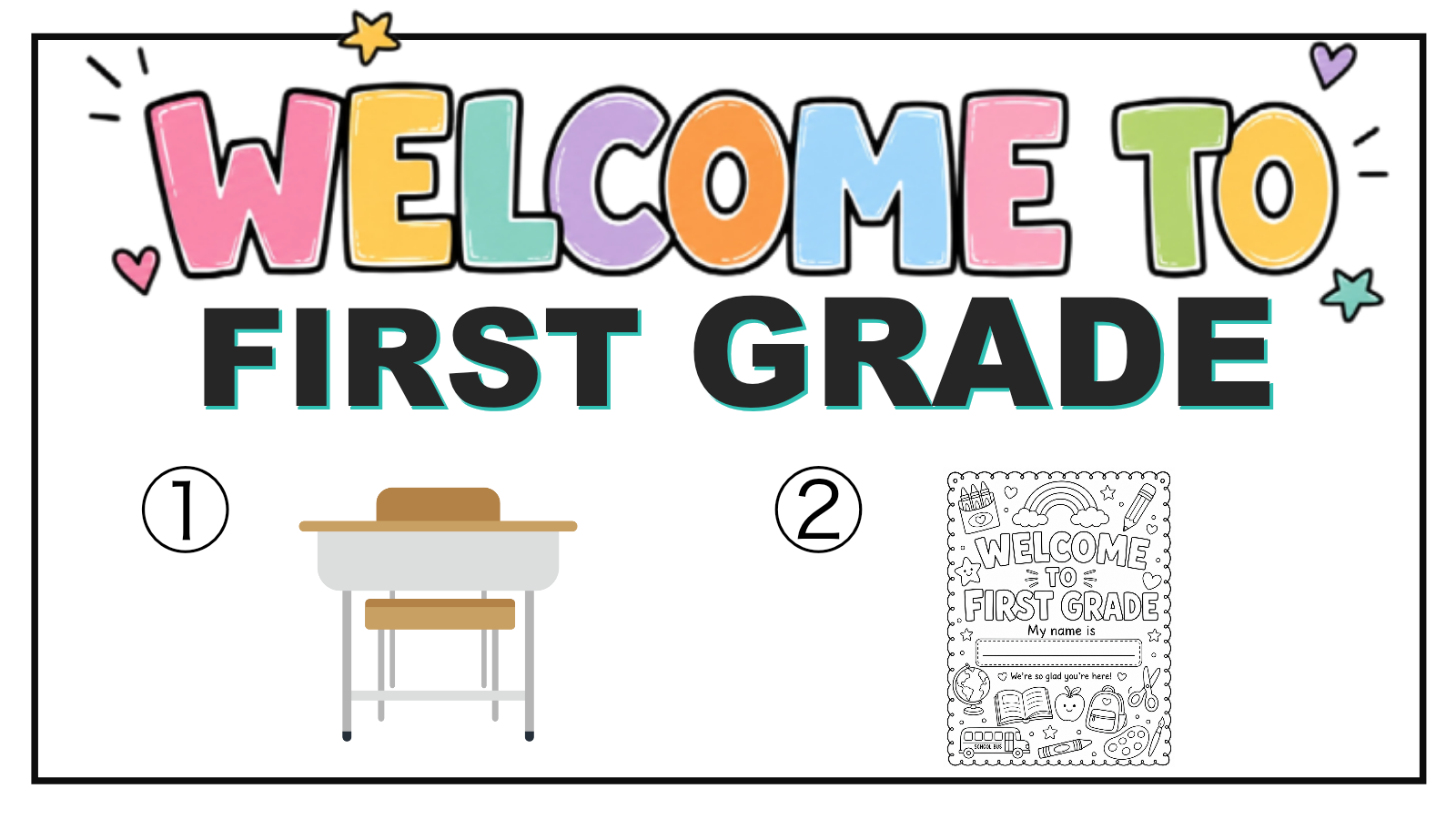
First Day of School Resources for 1st Grade
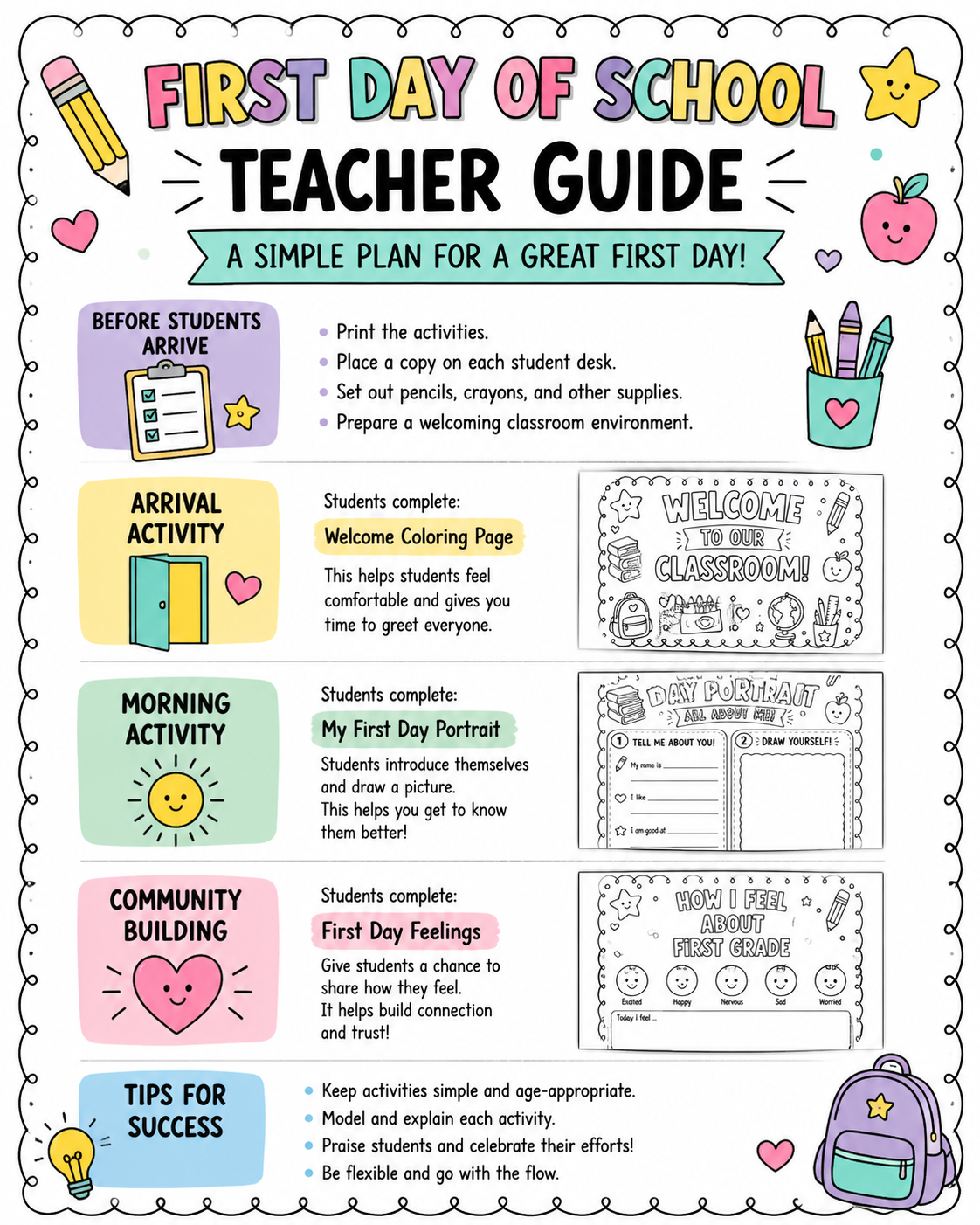
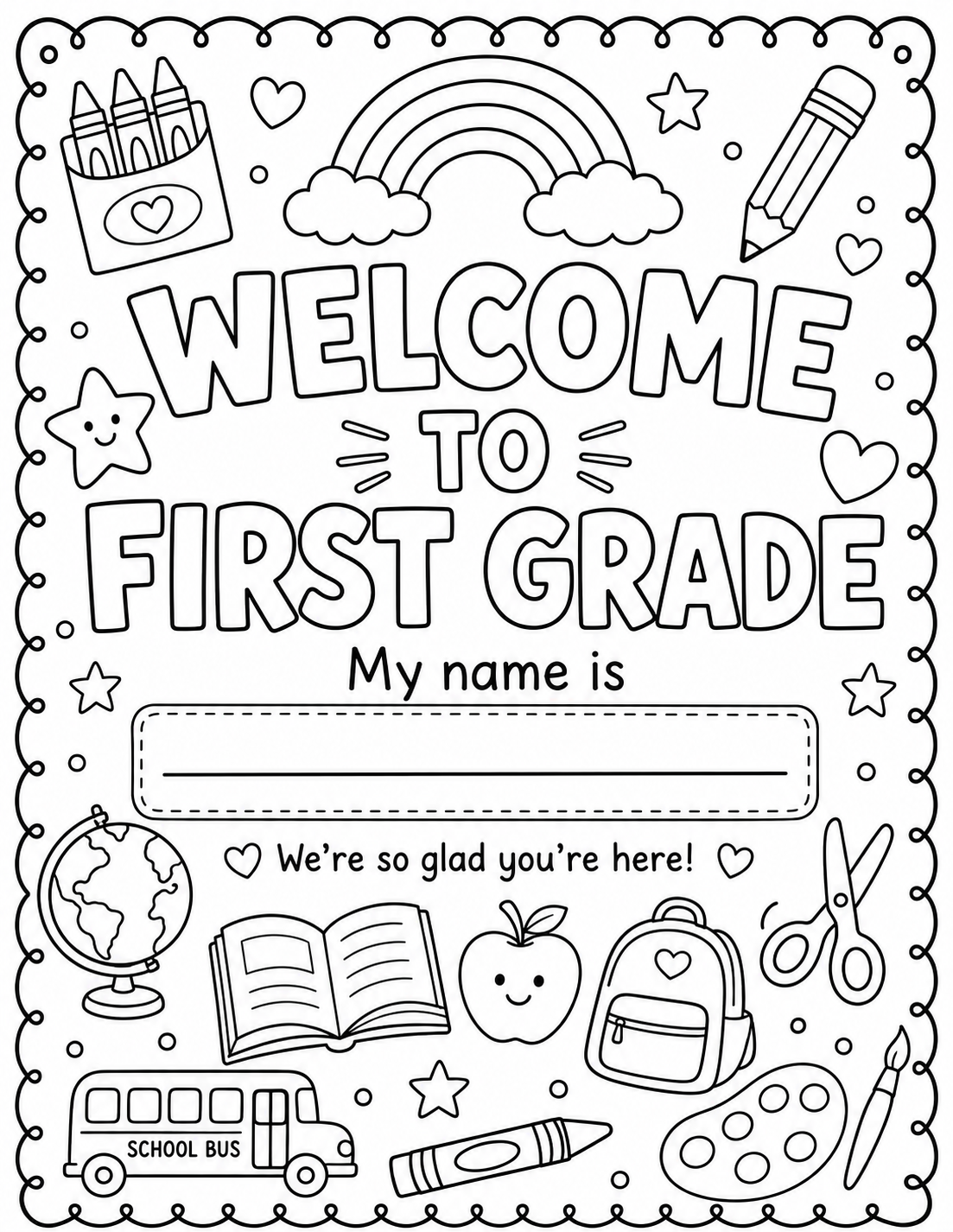
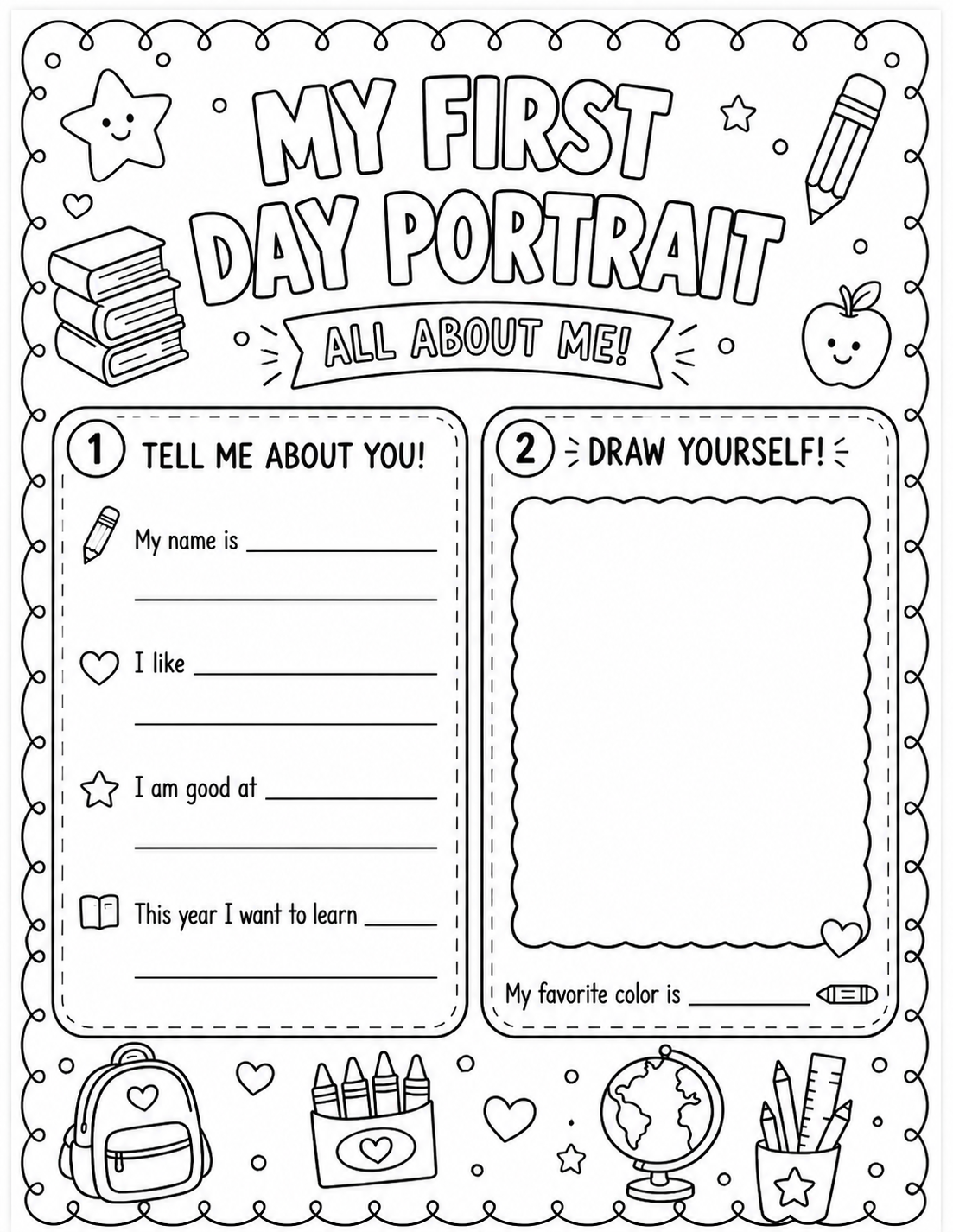
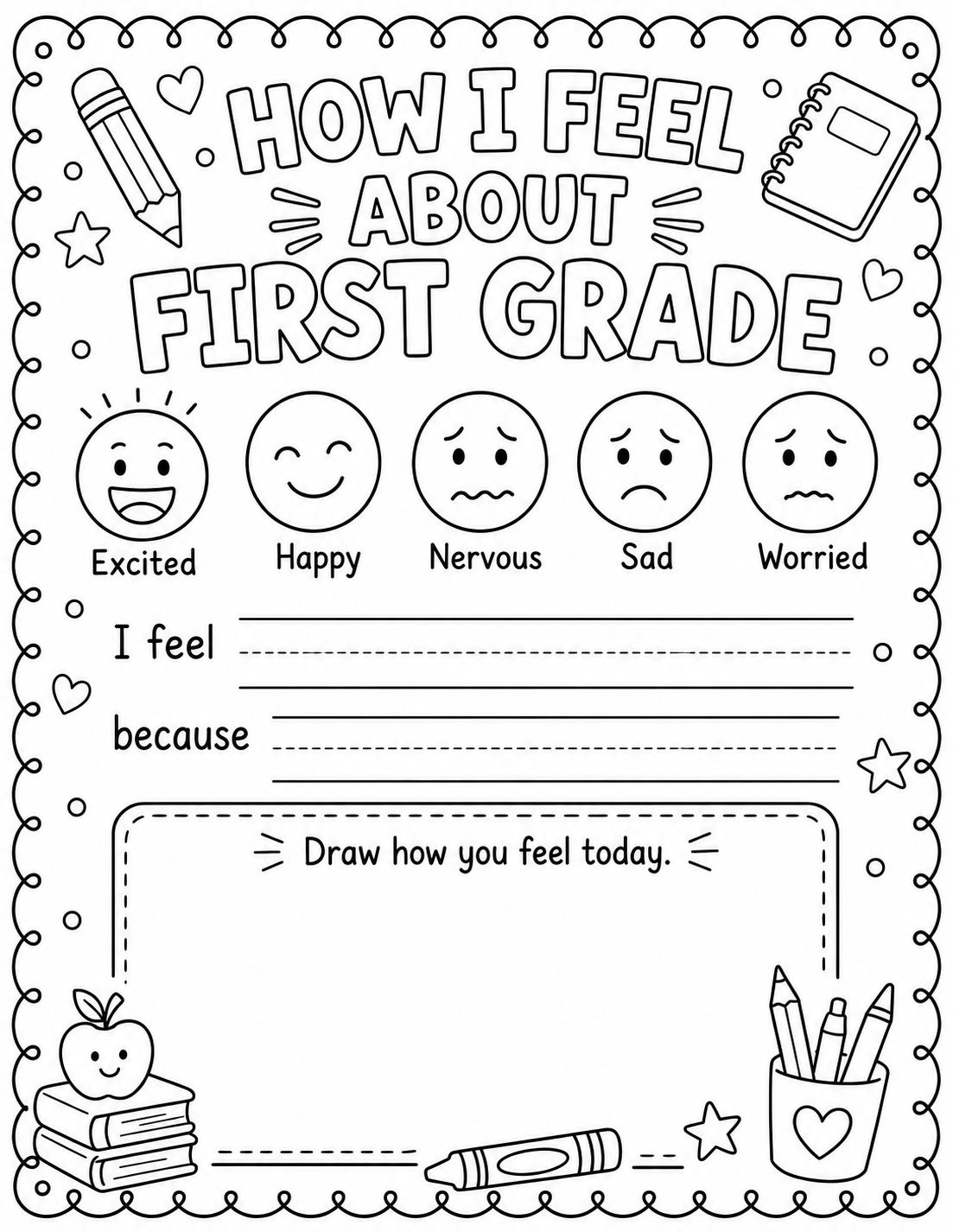
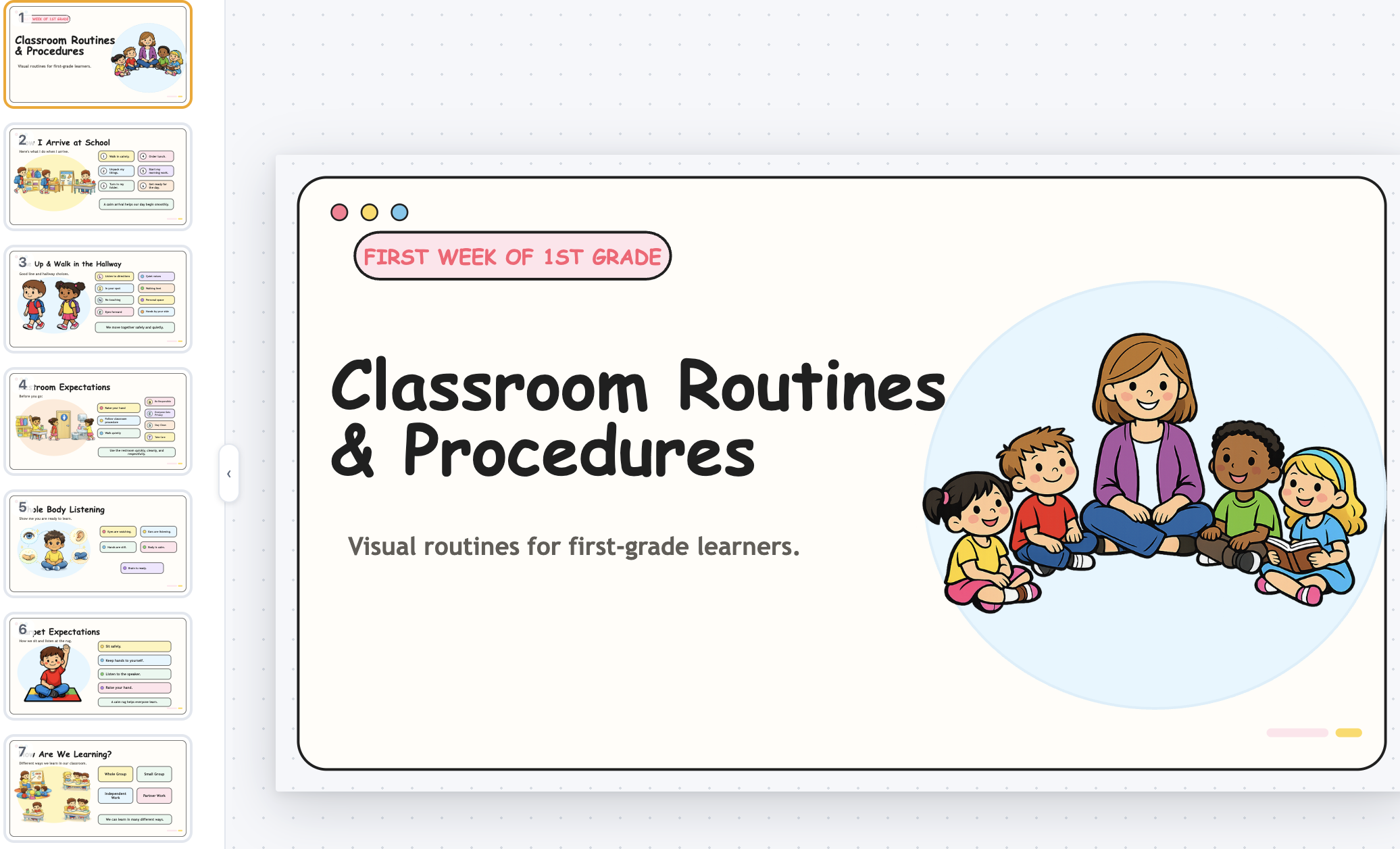
Prepare printable activities, a teacher guide, and editable classroom slides.
View resource Interactive Classroom Games & Tools
5 tools · One payment · Private in your browser
Tip: Editing is easier on a computer.
Unlock the 5 name tag tools
$3.90 · One-time purchase
Keep planning
Continue classroom setup with teacher resources, visual timers, reward tools, and a review game.
Prepare printable activities, a teacher guide, and editable classroom slides.
View resource
Give transitions, cleanup, and quick activities a clear finish line.
Open tool
Turn group points into a shared classroom garden and visual reward.
Open tool
Combine focus time with a friendly digital class pet reward.
Open tool
Three simple steps
Choose the design that fits your classroom, edit the details in the browser, and print a classroom-ready set without formatting every name tag by hand.
Select login cards, desk plates, mailbox tags, photo tags, or chair-back tags from the tool selector.
Add names, edit the available settings, upload local photos where supported, and check the preview.
Use Print / Save as PDF after unlocking the Bundle. Each tool keeps its own print-ready layout.
Browser-only privacy
Classroom name tags and login cards can contain sensitive information. This bundle keeps names, usernames, passwords, and photos in the current browser tab. It does not send your classroom data to BeMoFun or save it to an account.
After printing, clear the rows or close the tab. Store printed login cards and student photos carefully, and follow your school or district’s privacy policy.
Classroom routines
Prepare desk plates, chair-back tags, and mailbox labels before students arrive.
Use clear name tags and login cards to help students find their spaces and devices.
Add a name and reprint only the tool layout you need when a student joins the class.
Use local photo name tags for classroom jobs, cubbies, centers, or welcoming displays.
Helpful details
One purchase includes five independent browser tools: Student Login Card Maker, Student Desk Name Plate Maker, Mailbox Name Tag Maker, Student Photo Name Tag Maker, and Chair-Back Name Tag Maker.
No. A single one-time purchase unlocks printing and PDF saving in all five tools.
Yes. Each tool has its own editor and preview. You can add names, adjust settings, upload local photos where supported, and review the layout before printing.
No. Student information and photos stay in the current browser tab. BeMoFun does not upload, save, or send the information to a server.
You can share a link to open a specific tool, but the link does not share paid access. The other teacher needs their own purchase or access restoration.
Yes. The same purchase unlocks all five tools for printing and saving as PDF.
Teacher guides
Choose the right printable classroom name tag format for student desks, mailboxes, login information, displays, and flexible seating.
Read the teaching guideCreate, store, distribute, and update student login cards while keeping names and passwords appropriately private.
Read the teaching guide